Deleting an Existing Field
This doc explains how to delete an existing field from a module. Consider that you want to delete the Choose Issued State field from the Address & Identification module. Currently, the Address & Identification module is as follows.
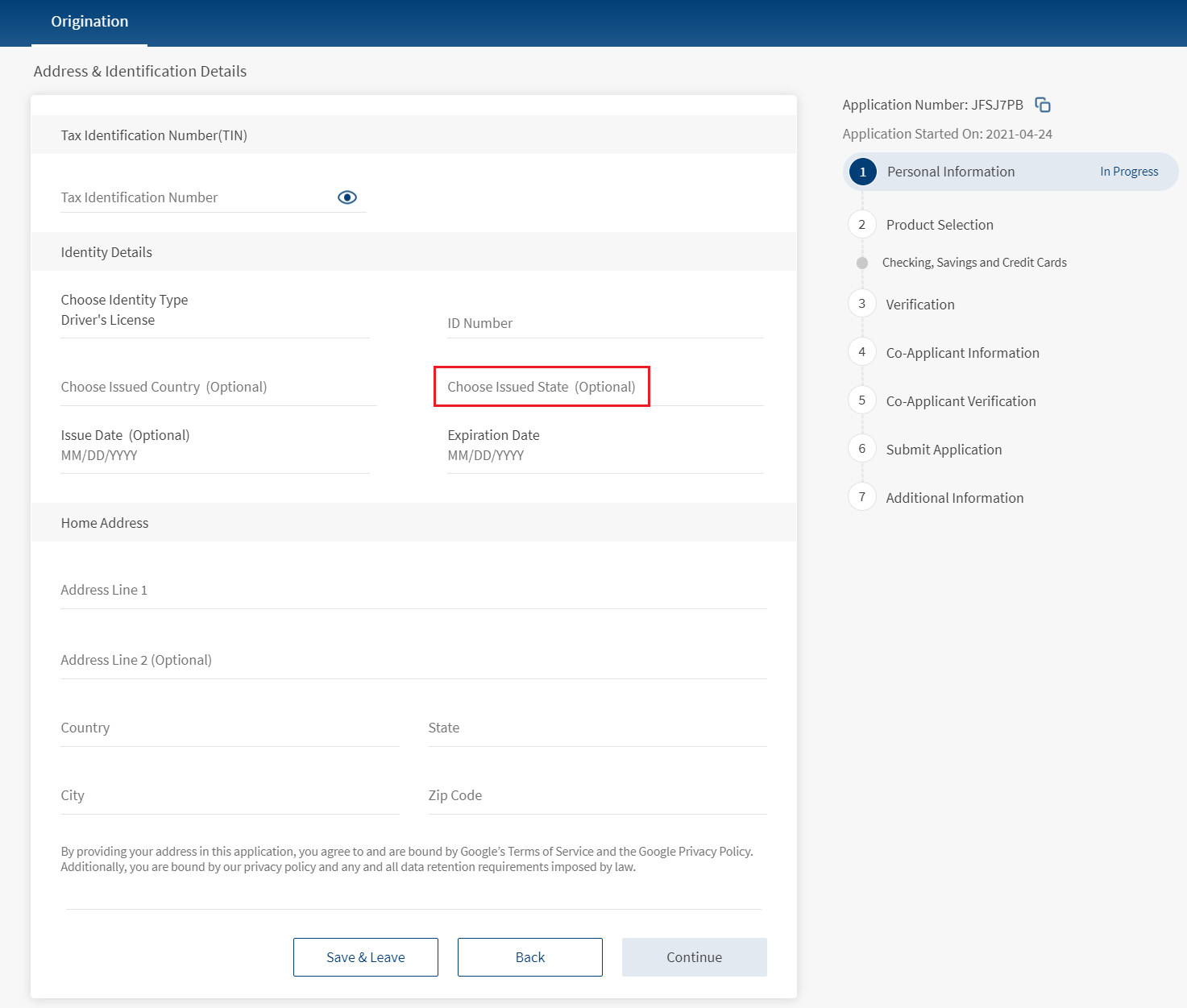
You can disable the functionality of the Choose Issued State field in the following two possible ways:
- Turn off the visibility of the Choose Issued State field in the Infinity Onboardng Visualizer project. For more information about how to turn off the visibility, refer to UI/UX Modifications.
- Delete the fields that are associated with the Choose Issued State field. To do so, you must make the following changes:NOTE:
- As the Choose Issued State field is already available in Transact, you need not configure the DBX DB.
- The aforementioned changes are sufficient for the Applicant and Co-Applicant sections.
Client Application Extensions
This section provides information about the client-side changes that are required to delete the Choose Issued State field from the Address & Identification module. Client Application Extensions involve configuring the following elements:
UI/UX Modifications:
UI/UX modifications represent the changes that are required to delete the Choose Issued State field. As the UI is non-extensible, you must update the required forms directly. To do so, make the following configurations in the Infinity Origination Visualizer project.
- In the Project explorer, expand the Modules section.
- Go to IdentityModule > frmIdentityDetails.
- Expand the frmIdentityDetails form, and then select the flxState flex container.
- From the Properties panel, navigate to the Look tab.
- Under the General section, turn off the visibility feature.
The visibility of the flxState flex container is now turned off. Therefore, you will not be able to see the field in the form.
NOTE: The layout of the screens is created by the designers of the implementation team. Based on the layout design, the developers of the implementation team configure the layout properties.
Form Controller Extension
To make a change in a form, you cannot directly modify the code in the Form Controller. You must always create a Form Controller Extension and modify the code as required. Form Controller Extension is required to validate the new modifications. It includes operations such as the configuring JSON payload, fetching the back-end response, and mapping the error modules.
In the case of deleting the Choose Issued State field, you must delete the field from the JSON payload and the validations that are associated with the Choose Issued State field. To do so, follow these steps.
- In the Project explorer, expand the Modules section.
- Right-click the require tab, and then select New Require module. A new JS file is created.
- Rename the js file to IdentityControllerExtension.
- Define the following functions in the
IdentityControllerExtensionfile. These functions override the functionality of the functions defined for the Choose Issued State field in the Form Controller of the frmIdentityDetails form.- formIdentityJSON()
formIdentityJSON: function() { var payload = this.super('formIdentityJSON', []); delete payload.IssuedState; return payload; } - validateCountryAndState()
validateCountryAndState: function() { var addComp = this.getAddressComponent(); var country = ""; if (!this.isCountryHidden && this.isGenericComponent) { country = addComp.getCountry(); } //var state = addComp.getState(); var regex = applicationManager.getConfigurationManager().getConfigurationValue("IDNumberRegex"); if (this.isGenericComponent && !this.isCountryHidden && (country.trim() == "" || !country.match(regex))) { this.view.setContentOffset({ x: 0, y: 0 }); addComp.flxError.isVisible = true; addComp.lblError.text = "Please enter a valid Country"; addComp.flxSeparator3.skin = applicationManager.getConfigurationManager().getConfigurationValue("underlineErrorSkin"); this.AdjustScreen(); return false; } /* else if(state.trim() == "" || !state.match(regex)){ this.view.setContentOffset({x:0,y:0}); addComp.flxError.isVisible = true; addComp.lblError.text = "Please enter a valid State"; addComp.flxSeparator4.skin = applicationManager.getConfigurationManager().getConfigurationValue("underlineErrorSkin"); this.AdjustScreen(); return false; } */ return true } - successGetIdentity()
successGetIdentity : function(res) {
var scope = this;
if(res["data"])
{
if(res["data"].TaxIdNum && res["data"].TaxIdNum !== ""){
this.view.IdentityDetails.atbxTINNumber.setText(res["data"].TaxIdNum);
}
if(res["data"].IDType && res["data"].IDType !== ""){
this.view.IdentityDetails.setIDType((this.getIdentityTypeDesc(res['data'].IDType)));
}
if(res["data"].IdNumber && res["data"].IdNumber !== ""){
this.view.IdentityDetails.atbxIdNumber.setText(res['data'].IdNumber);
}
if(res["data"].IssuedCountry && res["data"].IssuedCountry !== ""){
var country = (res["data"].IssuedCountry + "").trim();
country = this.getPossibleIdentityCountryName(country);
var id = this.getCountryId(country);
this.updatePossibleIdentityStates(id);
this.setIdentityStateMasterData(this.possibleIdentityStates);
this.view.IdentityDetails.setCountry(this.getIdentityCountryFullNameByCode(res["data"].IssuedCountry));
}
// Removing issued state response from being populated
// if(res["data"].IssuedState && res["data"].IssuedState !== ""){
// this.view.IdentityDetails.setState(this.getIdentityStateFullNameByCode(res['data'].IssuedState));
// }
if(res["data"].IssuedDate && res["data"].IssuedDate !== ""){
var issuedate = this.newDateFormat(res['data'].IssuedDate);
this.view.IdentityDetails.issueDateComponent.setText(issuedate);
}
if(res["data"].ExpirationDate && res["data"].ExpirationDate !== ""){
var expirydate = this.newDateFormat(res['data'].ExpirationDate);
this.view.IdentityDetails.expiryDateComponent.setText(expirydate);
}
if(res["data"].ID && res["data"].ID !== "" && !(this.context.isCoApplicantFlow)){
this.context.applicantidentityInfoID=res["data"].ID;
}
if(res["data"].ID && res["data"].ID !== "" && (this.context.isCoApplicantFlow)){
this.context.coapplicantidentityInfoID=res["data"].ID;
}
}
if(scope.context.isNewApplication === true){
scope.setScannedOrUploadedDocValues();
}
if(this.context && this.context.partyResponse && !(this.context.isCoApplicantFlow) && !this.isIdentityDataValid(res["data"])){
this.populatePartyIDResponse(this.context.partyResponse)
}
this.changeContinueButtonState();
},
- formIdentityJSON()
- After defining the functions, link the new extension file to your ModuleConfig file of the Address & Identification module. To do so, go to Project > Reference Architecture Extensions > IdentityModule > Config > ModuleConfig.
Add the following code in the Forms method:"ControllerExtensions": ["IdentityControllerExtension"]
Configuring Spotlight
The Spotlight configurations that are required to delete the Choose Issued State field are similar to the Spotlight configurations described in the Mandatory Field Validations document. The only difference is that you must delete the Choose Issued State field instead of the Last Name field. For more information about how to configure the Spotlight app, refer to Configuring Spotlight for Mandatory Field Validations.
Origination Data Microservice
After you create and configure new fields on the client-side, you must extend the ODMS functionality.
Update the ODMS
- Open Postman.
- From the left pane, expand the Storage-MS-API collection.
- Click Entity Definition By Code and then navigate to the Body tab.
- In the code, under the entityItemDefinitions, go to the IdentityInfo entity.
- Remove the
IssuedStateparameter from the value of the seed key."seed": "{\"IdNumber\":\"\",\"IDType\":\"\",\"IssuedDate\":\"\",\"ExpirationDate\":\"\",\"IssuedCountry\":\"\",\"TaxIdNum\":\"\"}" - Then, click Send.
The selected field is removed.
Server-side Extensions
This section provides information about the server-side changes that are required to delete the Choose Issued State field from the Address & Identification module.
After you implement the client application and extend the ODMS functionality, you must configure the server-side implementations to bind the UI elements with the back-end data. This involves configuring the following elements:
Java Integration Service
The Java Service section explains about how to extend the existing Data Transfer Objects to delete the references of the Choose Issued State field.
To modify the required java service, follow these steps.
- Open your Eclipse project.
- To remove usage of the Choose Issued State field, you must extend the functionality of the
resource implfile in com.temenos.onboarding.extn.resource.impl. The extension file overrides the existing fetch/update methods of the identityInfo DTO. To do so, create a new class namedIdentitityInfoResourceImplExtn.java.package com.temenos.onboarding.extn.resource.impl; import com.konylabs.middleware.controller.DataControllerRequest; import com.temenos.onboarding.dto.IdentityInfoDTO; import com.temenos.onboarding.resource.impl.IdentityInfoResourceImpl; public class IdentitityInfoResourceImplExtn extends IdentityInfoResourceImpl { @Override protected IdentityInfoDTO populateIdentityInfoDetails(DataControllerRequest dcRequest) { IdentityInfoDTO identityInfoDTO=new IdentityInfoDTO(); identityInfoDTO.setTaxIdNum(dcRequest.getParameter("TaxIdNum")); identityInfoDTO.setIdType(dcRequest.getParameter("IDType")); identityInfoDTO.setIdNum(dcRequest.getParameter("IdNum")); identityInfoDTO.setIssuedCountry(dcRequest.getParameter("IssuedCountry")); identityInfoDTO.setExpirationDate(dcRequest.getParameter("ExpirationDate")); identityInfoDTO.setDateOfBirth(dcRequest.getParameter("DateOfBirth")); return identityInfoDTO; } }
Experience API Changes in Quantum Fabric
To remove the functionality of the Choose Issued State field, you must delete the data associated with it but what if you want to re-enable this field in the future?
In this case, you need not make any modification to the Origination Fabric application. If you want to delete the field permanently, you must delete the data associated with it from the Origination Fabric application. To do so, follow these steps.
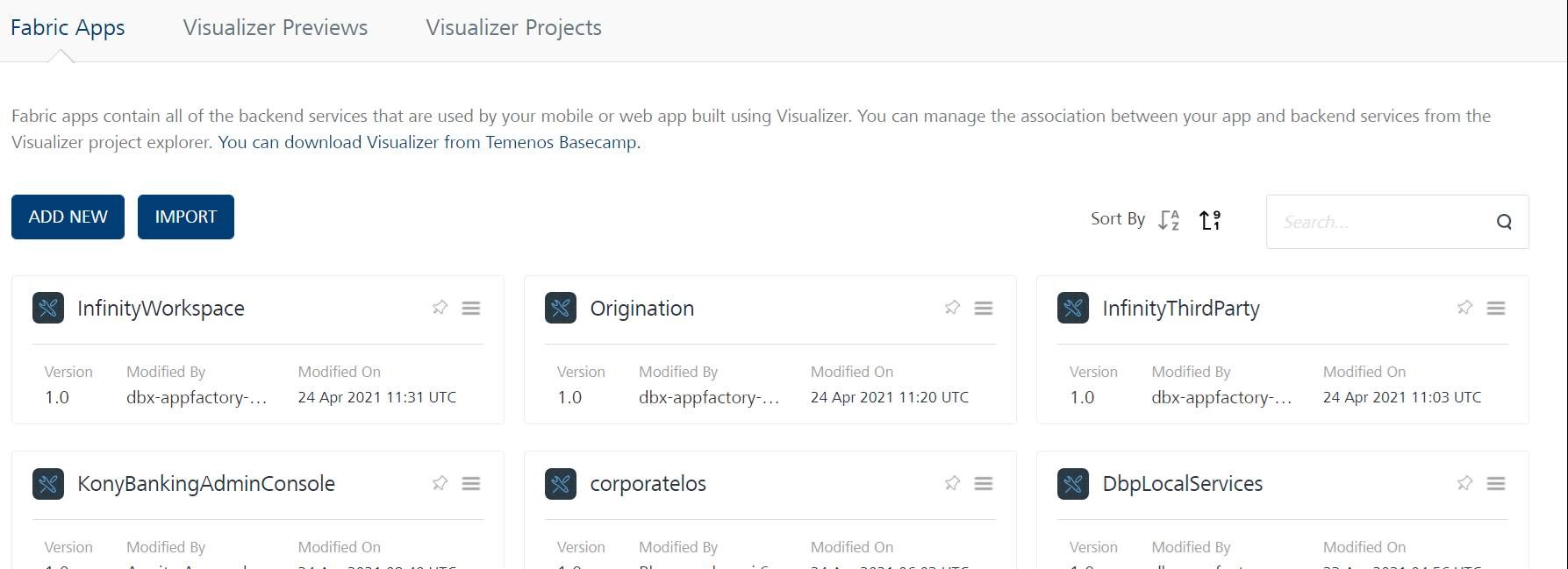
- Sign in to your Quantum Fabric Console. The applications page opens.

- Open the Origination app from the Applications page.
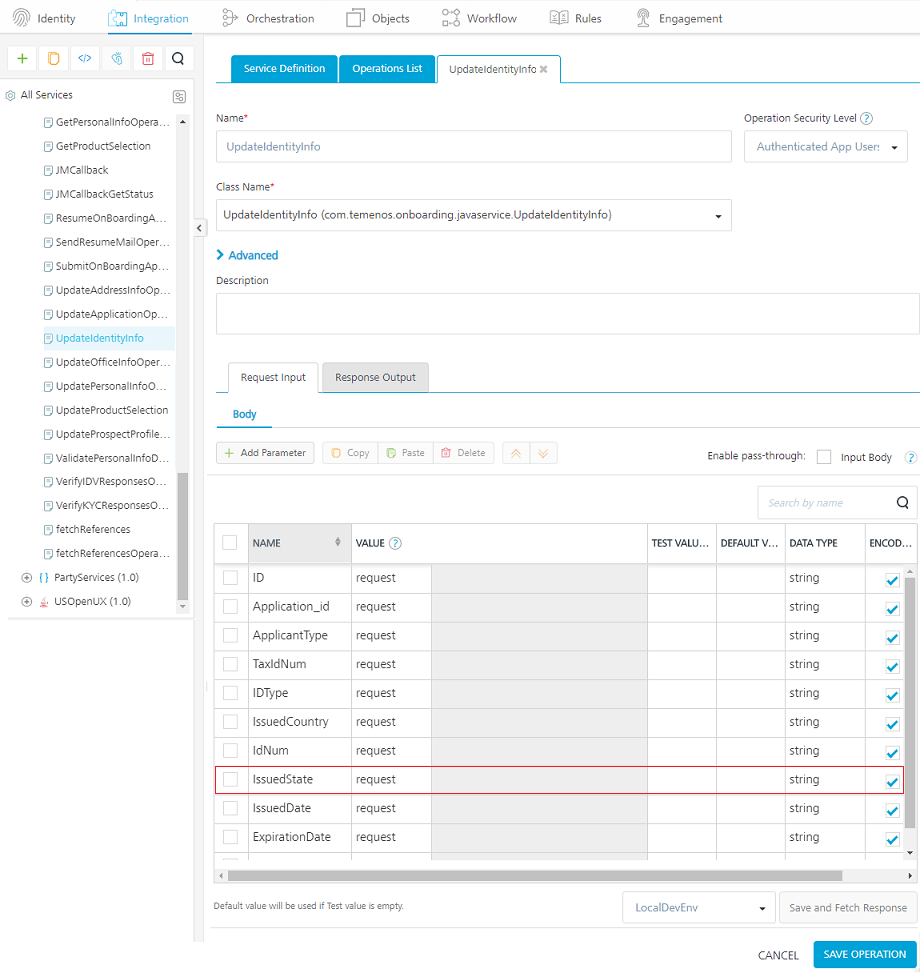
- Under the Integration tab, go to the OnBoardingJavaServices service definition and open the updateIdentityInfoOperation operation.
- In the Request Input tab, under Body, select the IssuedState parameter and click Delete.

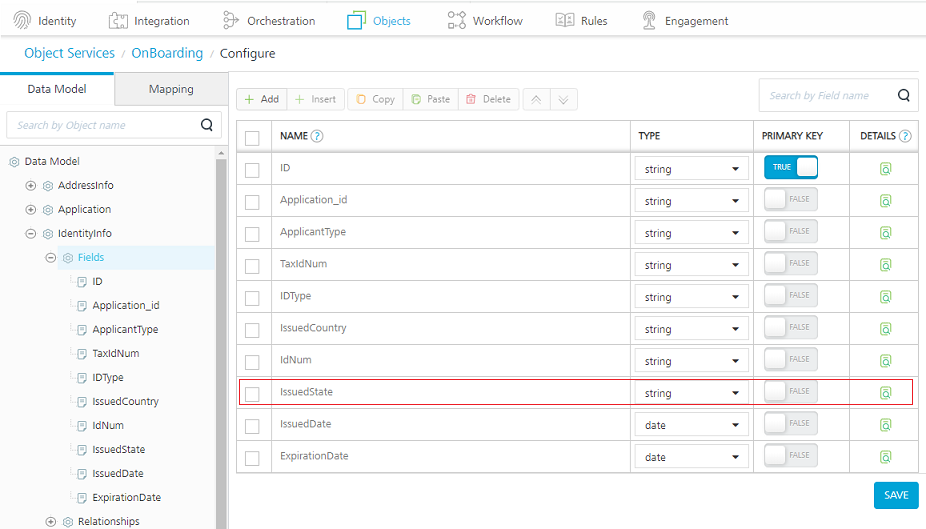
- After deleting the IssuedState parameter, open the Objects tab, go to the IdentityInfo object model and delete the IssuedState entry under Fields.

- Save the changes and publish the application.
In this topic
